How to Track Sleep on Apple Watch
Most of us have had a night where we spent eight hours in bed and still woke up feeling like we'd barely slept. The problem is that sleep is hard to judge from the inside. You're unconscious for most of it, and your memory of the night is usually limited to the times you woke up.
That's where your Apple Watch earns its place on your wrist overnight. With a few minutes of setup, it can record how long you actually slept, how much time you spent in each sleep stage, how often you woke up, and how your heart rate, breathing, and wrist temperature behaved through the night. Since watchOS 26, it also rolls much of that into a single nightly Sleep Score.
This guide walks through how to set up sleep tracking on Apple Watch, where to find your data, what the numbers actually mean, and how to use them to make better decisions about your sleep and long-term health.
What You Need Before You Start
Sleep tracking is built into the Apple Watch, so you don't need a third-party app to get started. You do need the right combination of hardware and software for some of the newer features.
Basic sleep tracking and sleep stages:
Any Apple Watch running a recent version of watchOS, paired with an iPhone. Sleep stages (Awake, REM, Core, and Deep) have been available since watchOS 9.
Sleep Score:
WatchOS 26 on an Apple Watch Series 6 or later, Apple Watch SE (2nd generation) or later, or any Apple Watch Ultra, paired with an iPhone 11 or later running iOS 26.
Sleep apnea notifications:
Supported on Apple Watch Series 9 and later and Apple Watch Ultra 2 and later. The feature is meant for adults 18 and over who haven't already been diagnosed with sleep apnea.
Wrist temperature:
Available on Apple Watch Series 8 and later and all Ultra models.
One more requirement that's easy to overlook: your watch needs enough battery to last the night. If it dies at 3 a.m., you lose the rest of the night's data. We'll cover charging strategy later in this guide.
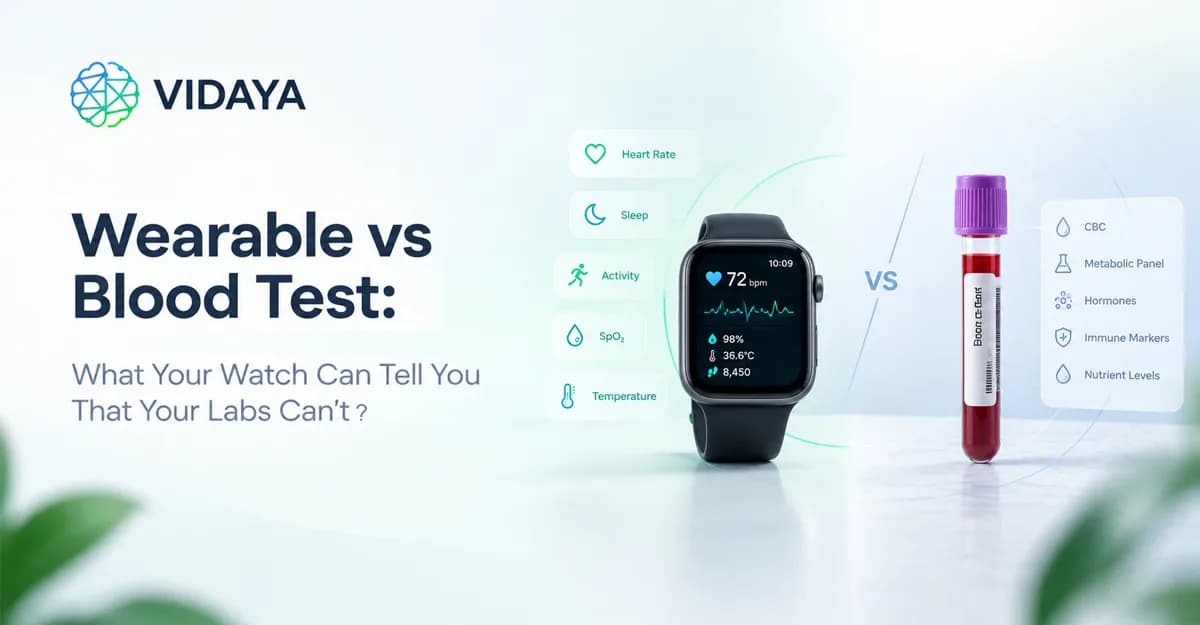
Read Also: Wearable vs Blood Test: What Your Watch Can Tell You That
How to Set Up Sleep Tracking on Apple Watch
You can set up Sleep from either your iPhone or your watch. Doing it on the iPhone is a little easier because the larger screen makes the schedule sliders simpler to adjust.
Option 1: Set Up Sleep on Your iPhone
Open the Health app on your iPhone.
Tap Browse (or the search icon), then tap Sleep.
Under Set Up Sleep, tap Get Started.
Set your sleep goal, which is the number of hours you want to spend asleep, not just in bed.
Choose your bedtime and wake-up time, and select the days the schedule applies to.
Pick an alarm sound if you want your watch to wake you with a gentle tap on the wrist.
When prompted, turn on Track Sleep with Apple Watch.
Option 2: Set Up Sleep on Your Apple Watch
Press the Digital Crown and open the Sleep app.
Follow the onscreen prompts to set your goal, bedtime, and wake-up time.
Use the Digital Crown to fine-tune your times, then confirm.
Make Sure Tracking Is Actually Turned On
This is the step people miss most often. If you paired your watch after setting up Sleep on your iPhone, tracking may not be enabled. To check:
On your iPhone, open the Watch app, go to the My Watch tab, tap Sleep, and turn on Track Sleep with Apple Watch.
Or, on the watch itself, open Settings, tap Sleep, and confirm the same toggle is on.
Create More Than One Schedule
Few people go to bed at the same time every night of the week. Apple lets you build multiple schedules, so you can have one for workdays and another for weekends. In the Health app, go to Sleep > Full Schedule & Options, then add a new schedule for the days you choose.
If you just need to change tomorrow's alarm because of an early flight or a late night, use Next Wake Up Only. That change applies only to the following morning and leaves your regular schedule alone.
Use Sleep Focus and Wind Down to Protect Your Bedtime
When your sleep schedule kicks in, your iPhone and watch switch to Sleep Focus. Notifications are silenced, your watch screen dims and locks, and your iPhone Lock Screen is simplified so you're less tempted to scroll.
Wind Down starts this quieter mode earlier, at a time you choose before bed (for example, 30 or 45 minutes). It's a small nudge, but it helps if your evenings tend to slide into late-night phone use. You can add shortcuts to Wind Down too, such as a meditation app, an audiobook, or a white-noise playlist, so the only things on your screen are the ones that help you settle.
To exit Sleep Focus on the watch, turn the Digital Crown to unlock the screen, then open Control Center and tap the Sleep icon.
Where to Find Your Sleep Data
Once you've worn your watch to bed, your data shows up in two places.
On Your Apple Watch
Open the Sleep app in the morning. You'll see last night's Sleep Score (on watchOS 26), your total sleep time, and a breakdown of time spent in each stage. Scroll down for your averages over the past two weeks. If you use the Smart Stack, a sleep widget can show your score with a single raise of the wrist.
In the Health App on iPhone
The Health app gives you the full picture. Go to Browse > Sleep to see:
Daily, weekly, monthly, and six-month views of time asleep versus time in bed.
Sleep stages for each night, shown as a timeline so you can see when you hit deep sleep and when REM clustered.
Your Sleep Score history and how each component contributed.
Heart rate and respiratory rate during sleep, plus wrist temperature on supported models.
The weekly and monthly views are where the useful patterns appear. A single night tells you very little; a month of nights tells you whether your weekend bedtime is drifting two hours later than your weekday one, or whether late dinners keep showing up as restless nights.
Read Also: Do Athletes Have Low Blood Pressure
How the Apple Watch Sleep Score Works
Sleep Score is the biggest change to Apple's sleep tracking in years. Each morning you get a number out of 100 that reflects how well your night lined up with healthy sleep patterns. Apple says the model was developed using more than 5 million nights of sleep data from the Apple Heart and Movement Study.
The score is built from three components:
Component | Points | What it measures |
Duration | Up to 50 | How long you slept compared with your goal and healthy ranges. Time in each sleep stage also factors in here. |
Bedtime | Up to 30 | How consistent your bedtime is with your usual pattern. |
Interruptions | Up to 20 | How often and how long you woke up during the night. |
With watchOS 26.2, Apple recalibrated the score bands to make high scores harder to earn. The current ranges are:
Very Low: 0–40
Low: 41–60
OK: 61–80
High: 81–95
Very High: 96–100
If you remember your scores feeling more generous when the feature first launched, that's why.
What Your Score Is Really Telling You
The weighting is worth noticing. Half the score comes from duration, and nearly a third comes from bedtime consistency. That means the fastest way to raise your score usually isn't some advanced sleep hack. It's going to bed at roughly the same time every night and giving yourself enough hours.
It's also worth keeping the score in perspective. Sleep Score doesn't collect any new data; it repackages what your watch was already measuring. It can't tell you whether you feel rested, and it doesn't account for how stressed you were, how hard you trained, or whether you were fighting off a cold. Treat it as a quick summary and a trend line, not a grade on your health.
If you'd like a heads-up when your score falls into a certain range, open Settings on your watch, scroll to Sleep, and tap Sleep Score Notifications.
Understanding Sleep Stages
Your watch uses its accelerometer and heart rate sensor to estimate which stage of sleep you're in. Here's what each one means:
Awake:
Brief wake-ups are normal. Most people wake several times a night and don't remember it.
REM:
The stage most associated with dreaming. It plays a role in memory, learning, and emotional processing, and it tends to get longer in the second half of the night.
Core:
Apple's term for light sleep (stages N1 and N2). It makes up the largest share of the night, and that's expected.
Deep:
Slow-wave sleep, linked to physical recovery and tissue repair. You get most of it in the first few sleep cycles, and the amount naturally declines with age.
A common mistake is chasing a specific number of deep sleep minutes. Wrist-based sensors are good at estimating total sleep and broad patterns, but stage estimates are less precise than a lab sleep study. It's more useful to watch whether your stages shift over weeks, especially after a change like cutting back on evening alcohol or moving your workouts earlier.
Vitals, Wrist Temperature, and Breathing: The Overnight Health Picture
Sleep tracking on the Apple Watch goes beyond sleep itself. While you sleep, your watch also collects several health signals that are easier to measure accurately when you're lying still.
The Vitals App
The Vitals app, introduced in watchOS 11, shows overnight metrics such as heart rate, respiratory rate, wrist temperature, blood oxygen (where available), and sleep duration. After it has enough nights to learn your normal range, it flags anything that falls outside it.
This is useful in a practical way. Many people notice that two or three metrics go out of range together the night before they come down with a cold, after a heavy night of drinking, or during a stretch of poor recovery from training. To get alerts, open Settings on your watch, tap Vitals, and turn on notifications.
Wrist Temperature
On supported models, your watch measures changes in your wrist temperature overnight against your personal baseline. It doesn't give you an absolute body temperature reading, but shifts from your baseline can reflect illness, alcohol, travel, or menstrual cycle changes.
Breathing Disturbances and Sleep Apnea Notifications
On supported models, the watch uses its accelerometer to detect small wrist movements associated with interruptions in normal breathing. Each night is classified as Elevated or Not Elevated. If you have frequent elevated nights over a 30-day period, you'll get a notification about possible sleep apnea.
To turn this on, open the Health app on your iPhone, tap your profile picture, tap Health Checklist, then tap Set Up under Sleep Apnea Notifications. You can review your nightly data under Respiratory > Breathing Disturbances.
Keep in mind that this feature is a screening tool, not a diagnosis. Alcohol, some medications, sleeping position, and respiratory infections can all raise breathing disturbances, and not everyone with sleep apnea will get a notification. If you get an alert, or if you snore heavily and wake up exhausted, talk to a doctor about a proper sleep study.
How to Get More Accurate Sleep Data
A few habits make a noticeable difference in data quality.
Fit the Band Properly
The watch should sit snug but comfortable, a finger's width above your wrist bone. If it slides around, heart rate readings get noisy. Many people switch to a soft fabric band like the Sport Loop or Solo Loop at night.
Plan Your Charging
The most reliable approach is to charge while you're getting ready for bed or right after you wake up, during your shower and breakfast. Newer models charge quickly, so even a short top-up can cover a full night. Turn on Charging Reminders in your Sleep settings and your watch will prompt you before Wind Down if the battery is low.
Wear it Consistently
Sleep Score and Vitals both rely on your personal baseline. Skipping nights makes the trends less reliable.
Stick to One Tracker
If you also wear an Oura ring or use a bed sensor, they may all write sleep data into Apple Health. Decide which source you trust for sleep and set its priority in Health > Sleep > Data Sources & Access.
Don't Panic Over One Bad Night
Everyone has rough nights. Look at weekly averages before deciding anything needs to change.
Turning Sleep Data Into Better Health Decisions
Sleep tracking only becomes valuable when it changes what you do. A few simple experiments can help:
Fix your bedtime first
Pick a target window and try to stay within 30 minutes of it for two weeks. Watch how your bedtime and interruption scores respond.
Test one variable at a time
Try stopping caffeine after noon, or finishing dinner three hours before bed, and compare your averages before and after.
Look at sleep alongside recovery
Check your overnight heart rate and HRV on the mornings after poor sleep. Many people find their resting heart rate climbs and HRV drops after short or fragmented nights.
That last point is where sleep data becomes more than a nightly report card. Sleep quality is closely tied to cardiovascular health, metabolic health, and how well your body recovers, which is why researchers increasingly treat it as one of the key signals of how your body is aging. If you're curious about that connection, our guide on what biological age is and how it's measured explains how signals like sleep architecture, HRV, and resting heart rate feed into these estimates.
The challenge is that Apple Health shows each metric on its own screen. Your sleep sits in one place, HRV in another, and your blood work, if you have it, lives somewhere else entirely. Platforms like Vidaya connect to Apple Health and read your sleep, HRV, resting heart rate, and VO2 max alongside lab results and other data, so you can see how a stretch of poor sleep lines up with changes elsewhere. If you're weighing whether that kind of tool is useful for you, this overview of how longevity apps work and what to look for in one is a good place to start.
Common Sleep Tracking Problems and Fixes
No Sleep Data in the Morning
Check that Track Sleep with Apple Watch is on, that you have an active sleep schedule for that day, and that the battery didn't die overnight.
Naps aren't Showing Up
Apple Watch primarily tracks sleep during your scheduled sleep period and when Sleep Focus is on. Short daytime naps outside that window may not be recorded.
Your Sleep Score isn't Appearing
Confirm both devices are updated (watchOS 26 and iOS 26 or later) and that your watch model is supported. You need at least one full night of data before your first score appears.
The Data Seems Wrong
If your watch logged sleep while you were reading in bed, it may be because you were very still. Lying motionless with a low heart rate can look like sleep. Over several weeks, these small errors tend to even out.
The Bottom Line
Tracking sleep on Apple Watch takes about five minutes to set up: create a sleep schedule, make sure Track Sleep with Apple Watch is turned on, and wear your watch to bed with enough charge to last the night. From there, Sleep Score gives you a quick morning check-in, the Health app shows your long-term trends, and features like Vitals and breathing disturbances add a wider view of your overnight health.
The real value comes from consistency. Wear it most nights, focus on trends instead of single scores, and use what you learn to make one small change at a time. Better sleep rarely comes from a dramatic overhaul; it usually comes from a steadier bedtime and a few habits that make it easier to wind down.
See What Your Sleep Is Really Telling You With Vidaya
Your Apple Watch already collects a lot of information every night. The hard part is understanding how it fits with the rest of your health. Is a week of short sleep the reason your HRV dropped? Are your late bedtimes showing up in your resting heart rate, or in your next blood test?
Vidaya brings it all together:
Connect Apple Health, and Vidaya pulls in your sleep stages, HRV, resting heart rate, and VO2 max automatically. You can add lab results, DNA, and body composition data too. All of it sits on one dashboard, with a Healthspan score and a biological age estimate that update as new data comes in. If you want to know what changed and why, you can ask Vaya Chat, Vidaya's AI assistant, in plain English.
Instead of checking one number each morning, you'll see how your sleep shapes your long-term health and what to try next.
Connect your Apple Watch to Vidaya and Get Your Healthspan Score Today →
Frequently Asked Questions
Recommended Reading
Hand-picked health intelligence connected to this topic.


Get notified of new posts
Join 100+ health-conscious readers. No spam, just new articles on longevity and optimization.